Modern cars come with technology designed to make driving safer, more comfortable, and less stressful. However, many useful features are switched off, configured poorly, or left on factory defaults that do not suit every driver.
A few adjustments can improve visibility, reduce distractions, protect personal information, and make everyday journeys easier. The important thing is knowing which settings are genuinely useful and which should be adjusted cautiously.
Since features vary by manufacturer, model, and year, check your owner’s manual before making changes. Here are seven practical car technology settings worth reviewing today.
1. Review Your Driver-Assistance Settings
Many drivers own vehicles equipped with lane departure warnings, blind-spot monitoring, and forward collision alerts without knowing how these features are configured.
These systems can provide useful warnings, but their sensitivity and operating conditions vary by manufacturer. Take a few minutes while parked to review the driver-assistance menu and understand which features are active.
Start with forward collision warning and automatic emergency braking, if your vehicle has them. Check that these safety features are enabled and familiarize yourself with the warning sounds and dashboard indicators.
Forward collision warning alerts you when a potential frontal collision is detected, while automatic emergency braking can apply the brakes when the system identifies an imminent crash. They are different technologies, and not every vehicle offers both.
Next, review lane departure warning and lane-keeping assistance. Some vehicles let you adjust warning timing, steering-wheel vibration, or alert volume.
If the system constantly beeps during normal driving, check whether its sensitivity can be adjusted rather than immediately switching it off. You should still use your turn signals and check mirrors and blind spots manually.
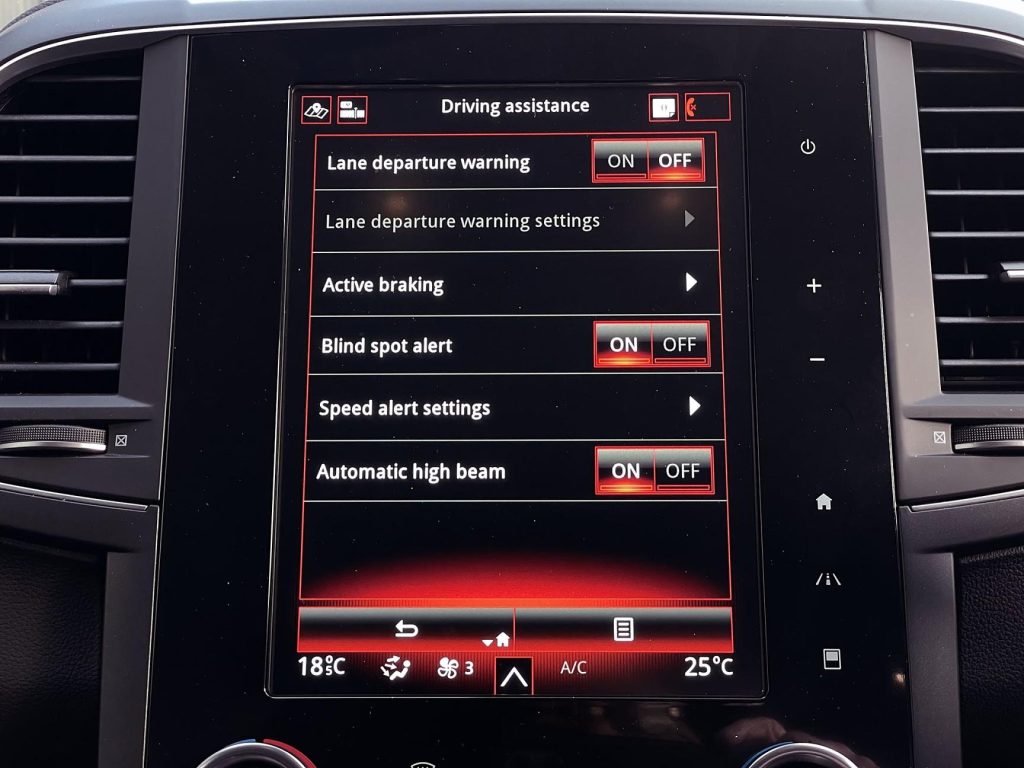
Blind-spot monitoring and rear cross-traffic alerts are also worth checking, particularly if you regularly drive in busy parking lots or change lanes on highways. Remember that these systems have limitations. Weather, road markings, dirt covering sensors, and certain traffic conditions can affect performance.
NHTSA emphasizes that driver-assistance technologies support the driver rather than replace attentive driving. Keep your hands and attention on the driving task, even when assistance is active.
2. Enable Automatic Headlights and Check High-Beam Assist
Forgetting to switch on your headlights can reduce your visibility and make your vehicle harder for other drivers to see. If your car has automatic headlights, check whether the feature is enabled.
It uses a light sensor to switch the headlights on when surrounding conditions become dark enough, such as when entering a tunnel or driving at dusk. The exact activation behavior differs between manufacturers, so consult your owner’s manual.
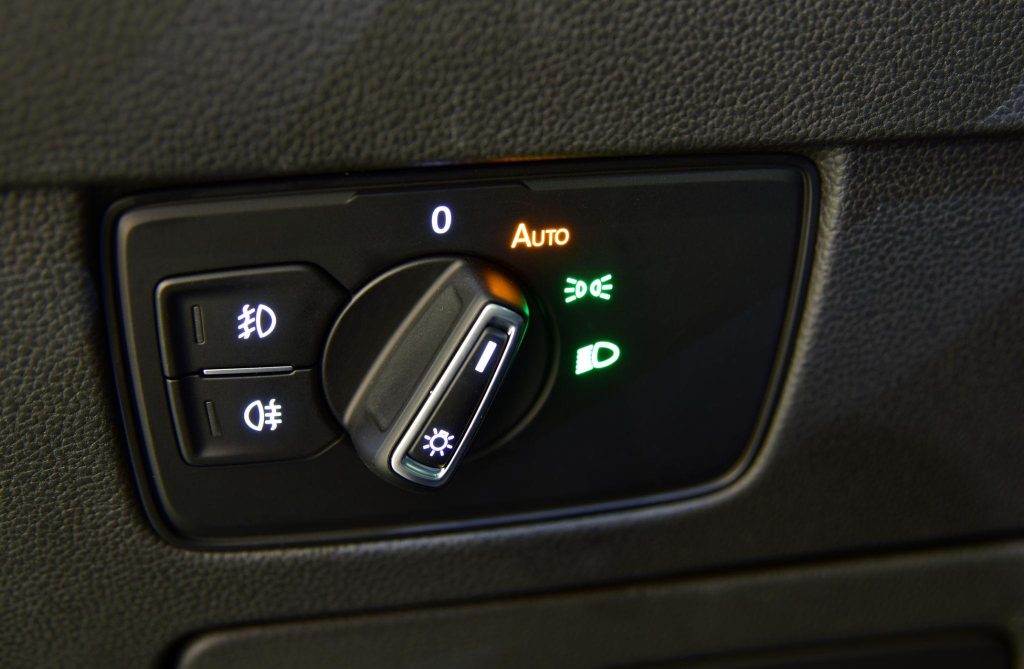
Look for an AUTO position on the headlight control switch or a corresponding option in the vehicle settings menu. Once activated, the system generally manages the headlights according to ambient light.
However, automatic headlights do not always respond to every situation in the way a driver expects. Heavy rain, fog, snow, and other low-visibility conditions may require you to switch on the appropriate lights manually, even during daylight.
If your vehicle includes automatic high-beam assist, review that setting too. This feature can switch between high and low beams when its sensors detect surrounding traffic or changing light conditions. NHTSA describes automatic high beams as a technology that responds to lighting conditions and approaching vehicles.
Do not assume the system will always detect every vehicle, cyclist, or pedestrian. Take control of the headlights when visibility or traffic conditions require it, and avoid using high beams when they could dazzle other road users. Also check that your headlights are clean and properly aimed.
Keep in mind that daytime running lights do not always function like full headlights. On certain vehicles, the rear lights remain off when daytime running lights are activated. Before depending on AUTO mode in low visibility or at night, check which lights actually turn on.
3. Set Up Automatic Emergency Calling
An emergency calling feature can be particularly valuable when a collision leaves you injured, disoriented, or unable to reach your phone.
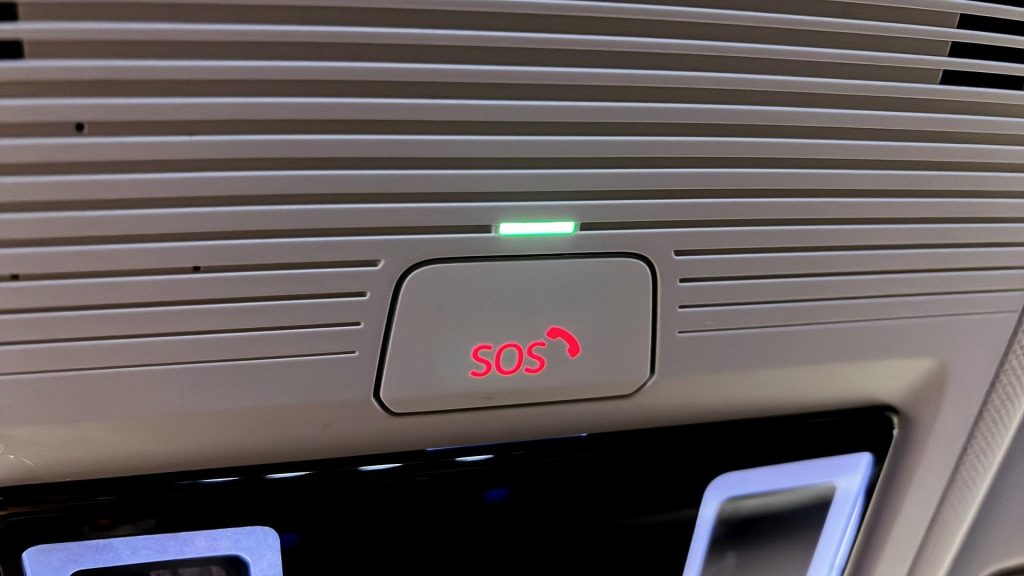
Depending on the vehicle, an SOS or emergency assistance system may connect you with an operator who can contact emergency services and share information about your location. Some systems can also automatically initiate a call after detecting a serious crash.
Check whether your vehicle has an emergency assistance service and whether it requires activation, registration, or a paid subscription. Manufacturers use different names and operating methods, so look in the connected-services section of the infotainment menu or consult the owner’s manual.
Some vehicles include a dedicated SOS button near the overhead console, while others use a connected smartphone application.
If the system requires an account, complete the setup before you need it. Confirm that your emergency contact details are current and that you understand whether the service works through a built-in cellular connection or a paired phone.
Coverage can depend on cellular availability, subscription status, vehicle equipment, and the service provider. Do not assume every car with an SOS button automatically has an active emergency response service.
General Motors’ OnStar, for example, offers emergency services and automatic crash response on eligible vehicles with the appropriate service arrangements. Other manufacturers provide their own connected emergency systems, with features varying by model and plan.
Avoid pressing the emergency button simply to test it. If you want to check whether the system is working, follow the manufacturer’s official testing instructions or contact its support service.
For an actual emergency in the United States, call 911 when possible. An in-car emergency feature is an additional safety resource, not a replacement for emergency services or a guarantee that help can always be reached.
4. Adjust Automatic Door Locks and Unlocking Preferences
Automatic door locking is a useful convenience feature, but its settings deserve a quick review. Many vehicles allow the driver to choose whether the doors lock when the car reaches a certain speed, when the transmission is shifted out of park, or after the vehicle has been started.
Some also provide automatic unlocking when the engine is switched off, or the driver’s door is opened.
Check your vehicle’s settings menu for options such as auto-lock, auto-unlock, and selective unlocking. Speed-sensitive locking can help prevent doors from being opened unexpectedly while the vehicle is moving.
However, it does not replace seat belts, child safety locks, or careful passenger supervision. If you regularly travel with children, learn how the rear-door child safety locks work and make sure they are configured appropriately.
Selective unlocking is another setting worth considering. Depending on the vehicle, one press of the key fob may unlock only the driver’s door, while a second press unlocks the remaining doors.
This can be useful when parking in unfamiliar areas because it limits which doors become accessible immediately. Other models allow all doors to unlock together.
There is no single setting that is best for every driver. Consider who regularly travels in your vehicle, where you park, and how passengers enter and exit. Check the owner’s manual before changing anything because some vehicles have different lock behaviors depending on the key, transmission, or ignition system.
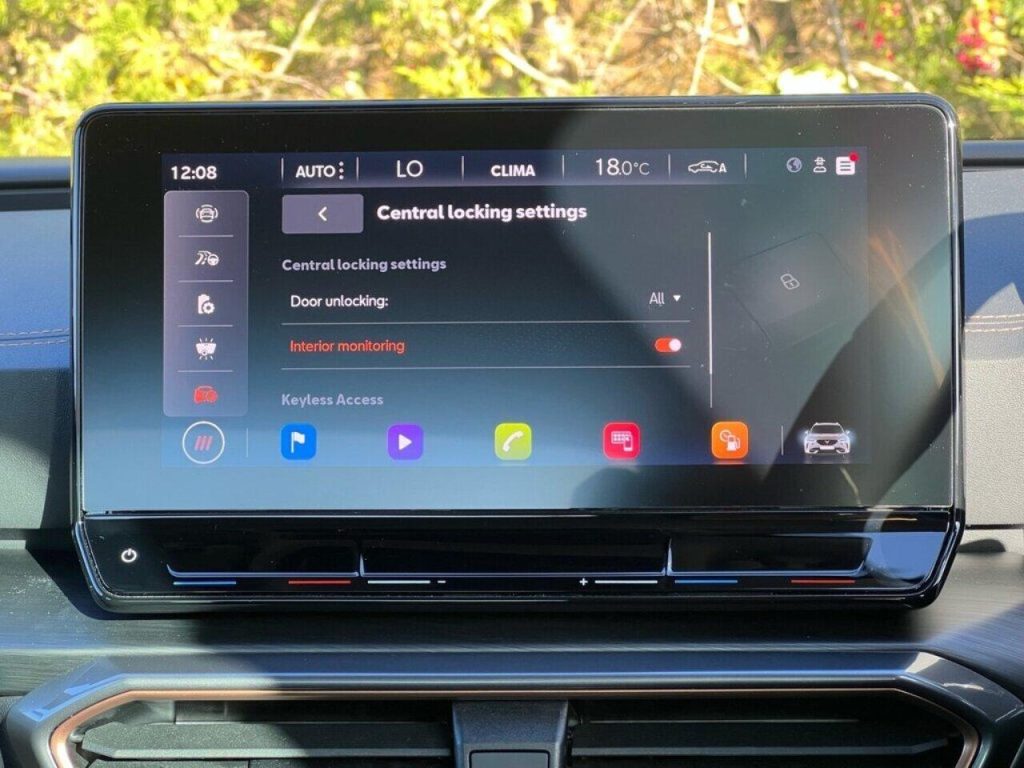
Never assume that locked doors make a vehicle safe in every emergency. Learn how the manual door releases work, especially if your car has electronic handles or power-operated locks.
Make sure passengers know how to exit the vehicle, and avoid disabling safety features without understanding their purpose. A few minutes reviewing these preferences can make the cabin more convenient without sacrificing sensible precautions.
5. Turn On Tire Pressure Monitoring Alerts and Learn Their Meaning
Your tire pressure monitoring system, commonly called TPMS, is designed to warn you when one or more tires are significantly underinflated. If your vehicle has a configurable tire-pressure display or alert menu, make sure you understand how it works and whether the system is reporting a fault.
This is especially important before long highway trips, when an underinflated tire can affect handling, braking, and tire wear.
In the United States, federal rules generally require TPMS on passenger cars, multipurpose passenger vehicles, trucks, and buses with a gross vehicle weight rating of 10,000 pounds or less, subject to certain exceptions.
The system is intended to warn drivers when tire pressure is substantially below the recommended level, not to replace routine pressure checks.
If the warning light illuminates, check all tires with a reliable pressure gauge when they are cold. Use the recommended pressure shown on the driver’s door-jamb placard or in the owner’s manual, not the maximum pressure printed on the tire sidewall.
If the light flashes before staying illuminated, your vehicle may be reporting a TPMS malfunction rather than simply low tire pressure. The exact warning behavior depends on the model.
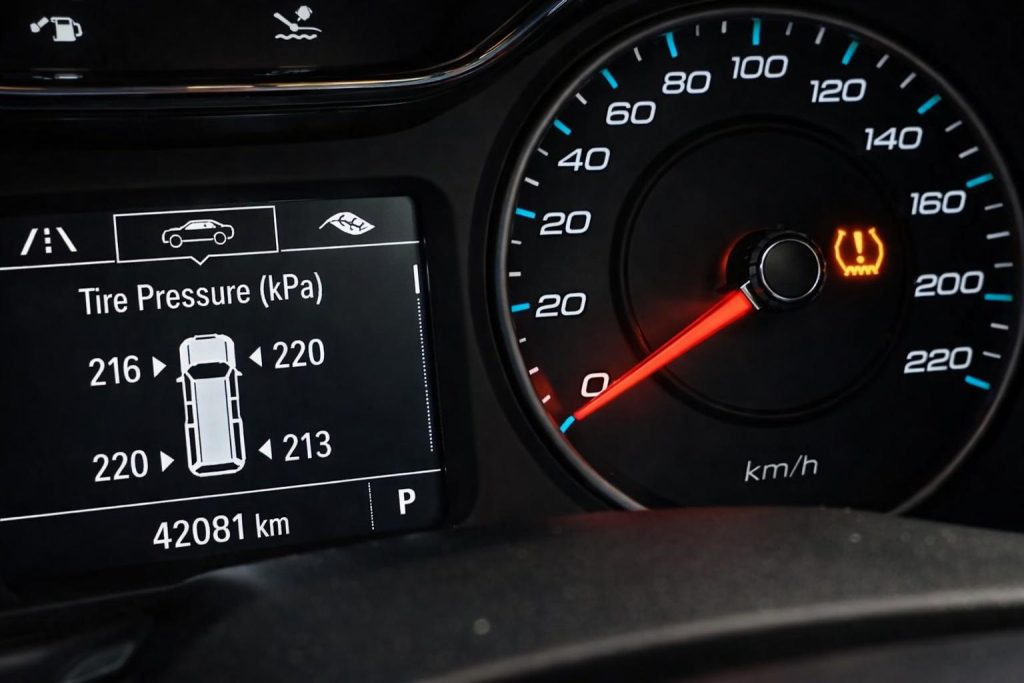
Some vehicles let you view individual tire-pressure readings through the instrument cluster or infotainment screen. Others display only a warning light. If your car has a tire-pressure reset or calibration procedure, follow the manufacturer’s instructions after correcting the pressure or rotating the tires.
Do not disable the warning system because it seems inconvenient. A TPMS alert is a useful early warning, but it cannot identify every tire problem, including punctures or sudden failures. Inspect tires regularly and respond promptly to changes in handling or visible damage.
6. Review Smartphone Permissions and Connected-App Privacy
Your car’s infotainment system may store more personal information than you realize. When you connect a smartphone through Bluetooth, Apple CarPlay, Android Auto, or a manufacturer’s companion app, the vehicle may access contacts, recent calls, messages, navigation information, or other data depending on the permissions you grant.
Start by opening the phone connectivity menu while the vehicle is parked. Review which devices are paired and remove phones belonging to previous owners, former users, or people who no longer need access. If you regularly lend your car to someone, consider whether their phone should have access to your contacts or other personal information.
Next, check the permissions requested by the manufacturer’s mobile app. Some connected services need location access to provide features such as remote vehicle location, navigation, or roadside assistance. Other permissions may be optional.
Review the app’s privacy settings and your phone’s permission controls so you understand what information is being shared and why.
The Federal Trade Commission advises consumers to understand connected-device privacy practices and review the information companies collect. Vehicle data practices differ by manufacturer, model, connected service, and applicable privacy policy.
Do not assume that every vehicle collects the same information or that every permission can be controlled from the dashboard.
Before selling or trading in your vehicle, remove paired devices, saved addresses, garage-door codes, and personal profiles. Follow the manufacturer’s procedure for deleting personal data or performing a factory reset.
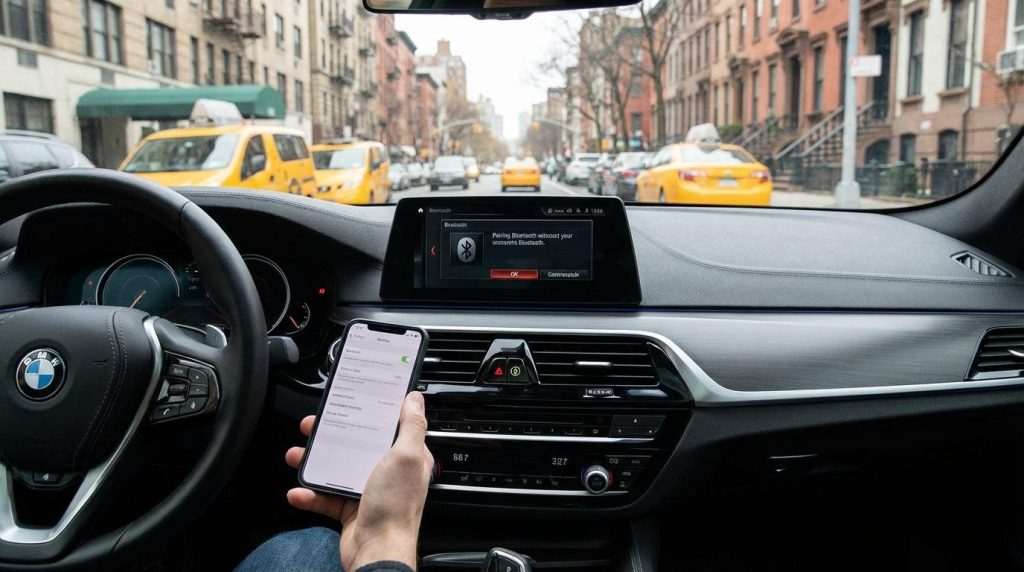
Remember that a factory reset may not cancel a connected-services account or remove information held by the service provider. Check the relevant account separately.
These checks are especially worthwhile if you bought a used vehicle. Previous owners may have left profiles, paired phones, or connected accounts behind. A few minutes reviewing access can reduce unnecessary exposure of your personal information.
7. Customize Speed Limit Alerts and Driver Display Preferences
Many newer vehicles can display the posted speed limit, warn when the vehicle exceeds a selected speed, or provide audible alerts when a driver crosses a chosen threshold.
These features can be helpful, particularly on unfamiliar roads where speed limits change frequently. However, their accuracy and availability depend on the vehicle’s camera, navigation data, software, and local road conditions.
Check the driver assistance or instrument cluster menu for speed warning settings. Some vehicles allow you to choose a fixed alert threshold, while others use traffic-sign recognition to display detected speed limits. If your vehicle has a configurable warning, set it at a level that helps you remain aware of your speed without becoming a distraction.
Do not treat a displayed speed limit as unquestionable. Camera-based systems can misread signs, while navigation databases may contain outdated information or fail to reflect temporary construction-zone limits.
Always follow the posted signs and applicable state or local traffic laws. A dashboard display is a reference tool, not legal authority.
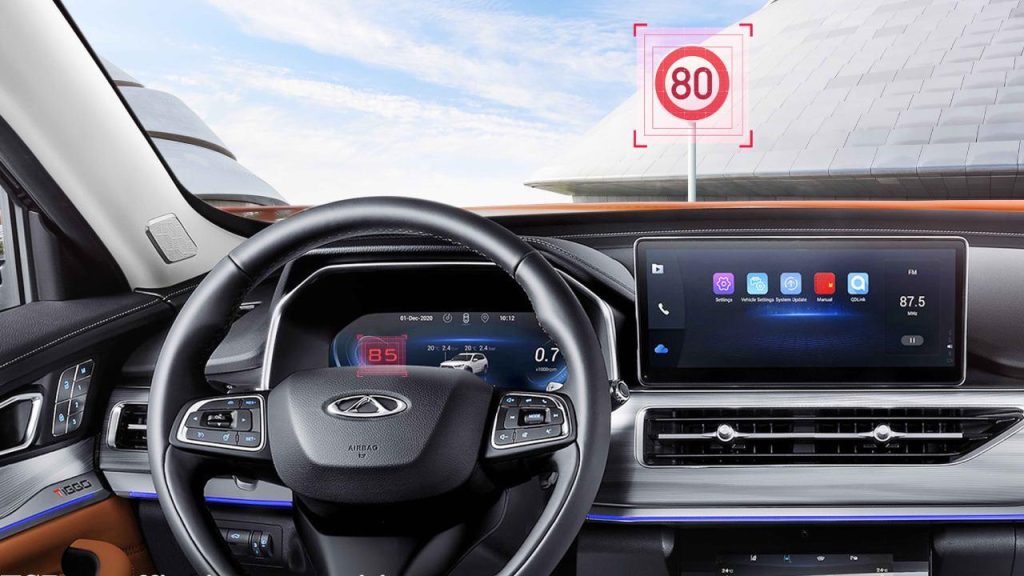
You can also review the instrument cluster layout. Depending on the model, you may be able to prioritize information such as current speed, fuel range, tire pressure, navigation directions, or driver-assistance status. Put the information you use most often where it is easy to read, and avoid filling the display with unnecessary notifications.
The National Highway Traffic Safety Administration emphasizes that drivers must remain attentive and obey posted speed limits. Driver-support technology does not transfer responsibility for safe driving away from the person behind the wheel.
Make adjustments while parked, and take time to learn the new display before driving. A clear instrument layout and a sensible speed alert can help you stay informed without encouraging you to rely blindly on technology.