Connected vehicles and driving apps collect information through separate systems. Depending on the service, the data may include location, mileage, speed, hard braking, acceleration, trip timing, diagnostics, phone movement, or account activity. A control is rarely placed on the first settings screen. It may be buried under Connectivity, Software, Privacy, Vehicle Connectivity, permissions, subscriptions, or an account page that appears unrelated to data sharing.
That scattered design makes a proper privacy review more complicated than turning off a single slider. A dashboard setting may not cancel an insurance program, revoke a third-party app, remove another authorized driver, or erase data already transmitted. Menu names change by model year, software version, phone brand, and service plan.
These ten menus are starting points rather than universal instructions. Drivers should read every warning, verify the final setting, and consult the applicable owner manual or privacy notice before assuming that collection has ended completely.
1. Ford’s Connectivity or Privacy Menu
Ford stores its vehicle data controls in different menu locations depending on the infotainment system installed in the vehicle. On many vehicles equipped with SYNC, the settings are typically found by opening Settings or Home, selecting Connectivity, then Connected Vehicle Features, and finally Share Vehicle Data. Vehicles that use Ford Digital Experience follow a different menu path.
Drivers can access the controls by opening Vehicle, selecting Settings, then Privacy, and choosing Data Sharing with Ford. Because these menu paths vary across different system versions, drivers who follow instructions intended for another generation may look in the wrong place and mistakenly believe that no data sharing controls are available.
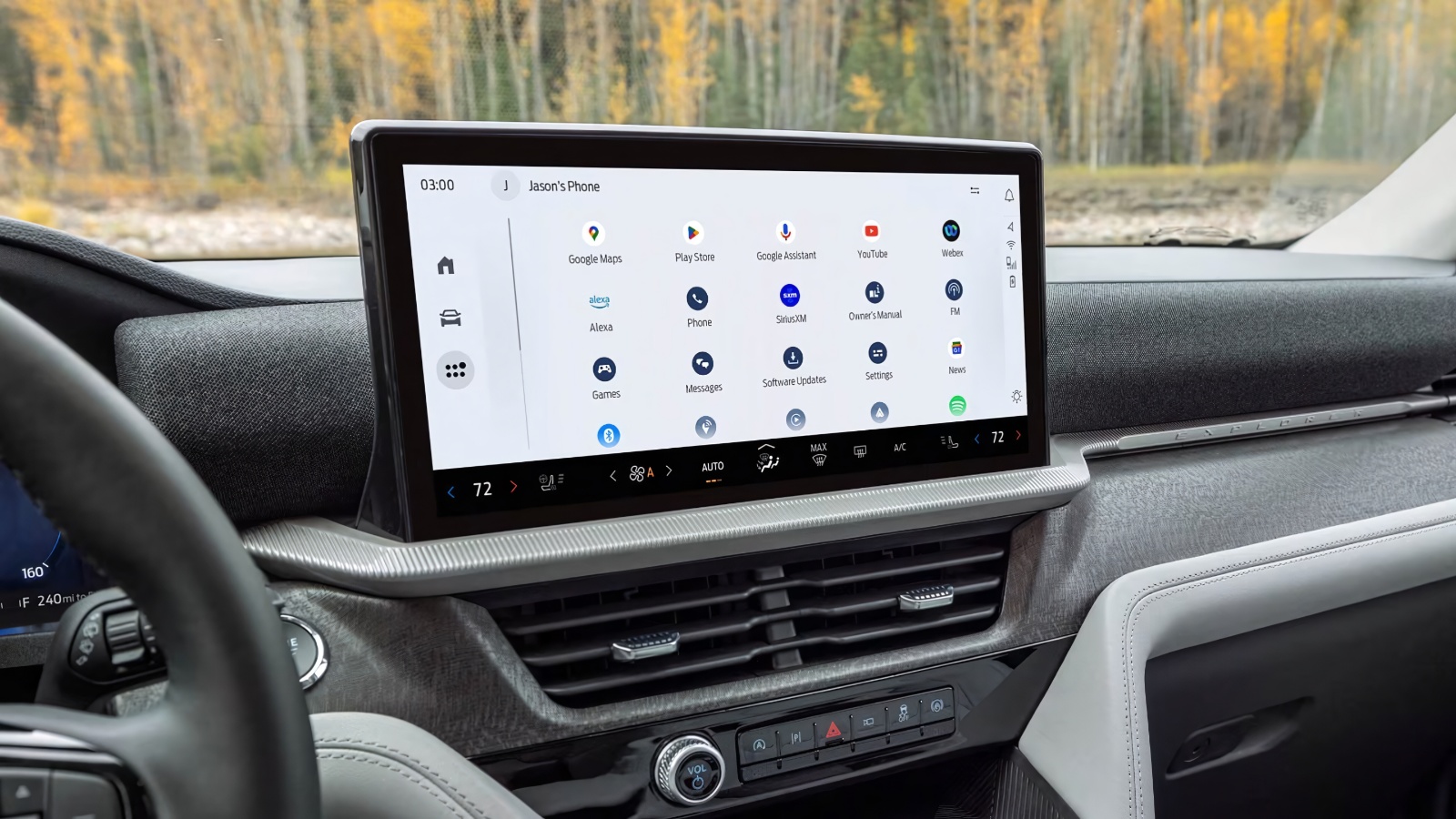
Open every item on that page instead of switching off only the first option. Ford explains that connected-vehicle choices may also appear under Account or Settings in the Ford app, depending on the services available. This means the dashboard and mobile account should be reviewed separately. A vehicle control may limit transmission from the car but leave an app permission, subscription, authorized user, or outside service active.
Before changing anything, note which remote or connected features you use. Disabling sharing can affect functions that depend on the vehicle’s connection, so read the warning shown on screen. After making a change, leave the menu, return to it, and confirm that the selection remained saved. Then open the Ford app and inspect account, privacy, vehicle, and connected-service settings. Remove drivers or services you no longer recognize.
Selling or returning a vehicle involves more than simply turning off a data sharing setting. Remove personal profiles, paired phones, saved destinations, and any connected accounts by following the instructions for your specific vehicle model.
The menu location provides an important guide. Start under Connectivity on SYNC systems or Privacy on Ford Digital Experience instead of looking under Bluetooth or standard navigation settings. For your records, capture screenshots before making the changes and again after they are complete.
2. Tesla’s Software and Data Sharing Menu
Tesla places optional vehicle-data choices under a menu most drivers associate with updates. The documented route is Controls, Software, and Data Sharing. Depending on the vehicle and installed software, the page may include options for cabin-camera analytics, driving-assistance information, road-segment data, sound detection, or other categories. Tesla’s manuals and privacy materials identify this touchscreen route, although the list can change by configuration and region.
Read each description individually. Turning off cabin-camera analytics is not necessarily the same as disabling every optional data category. Tesla also manages third-party application access through the owner’s account, not through the vehicle’s Data Sharing page. An outside charging, fleet, automation, or service may retain authorized access until the owner revokes it through the Tesla Account or the third-party application.
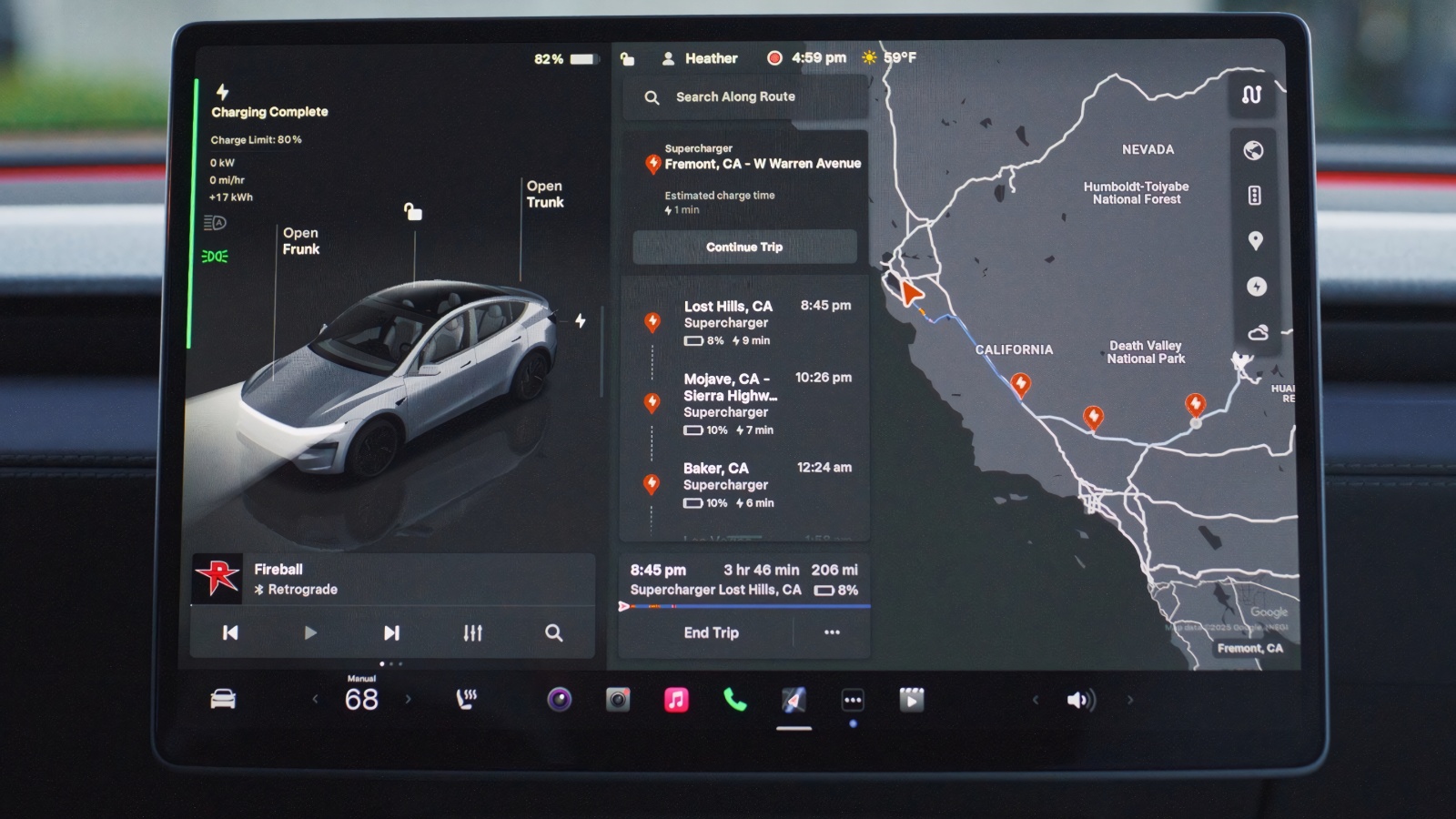
After adjusting the touchscreen switches, review the Tesla app for drivers. Tesla says added drivers can use vehicle features, so remove anyone who no longer needs access. Then inspect authorized third-party apps and revoke unused connections. Deleting an app from a phone does not necessarily withdraw its account authorization or disable the car’s cellular connection.
Tesla also allows account holders in some locations to request a copy of stored data. That request can help clarify what information exists, but it should not be treated as proof that every vehicle record is included.
Optional sharing controls likewise do not prevent processing needed for requested services, security, charging, diagnostics, legal duties, or safety events. Reopen Controls, Software, Data Sharing after any software update or profile change, confirm the selections, and save a photograph of the final screen.
3. Honda’s Privacy or System Menu
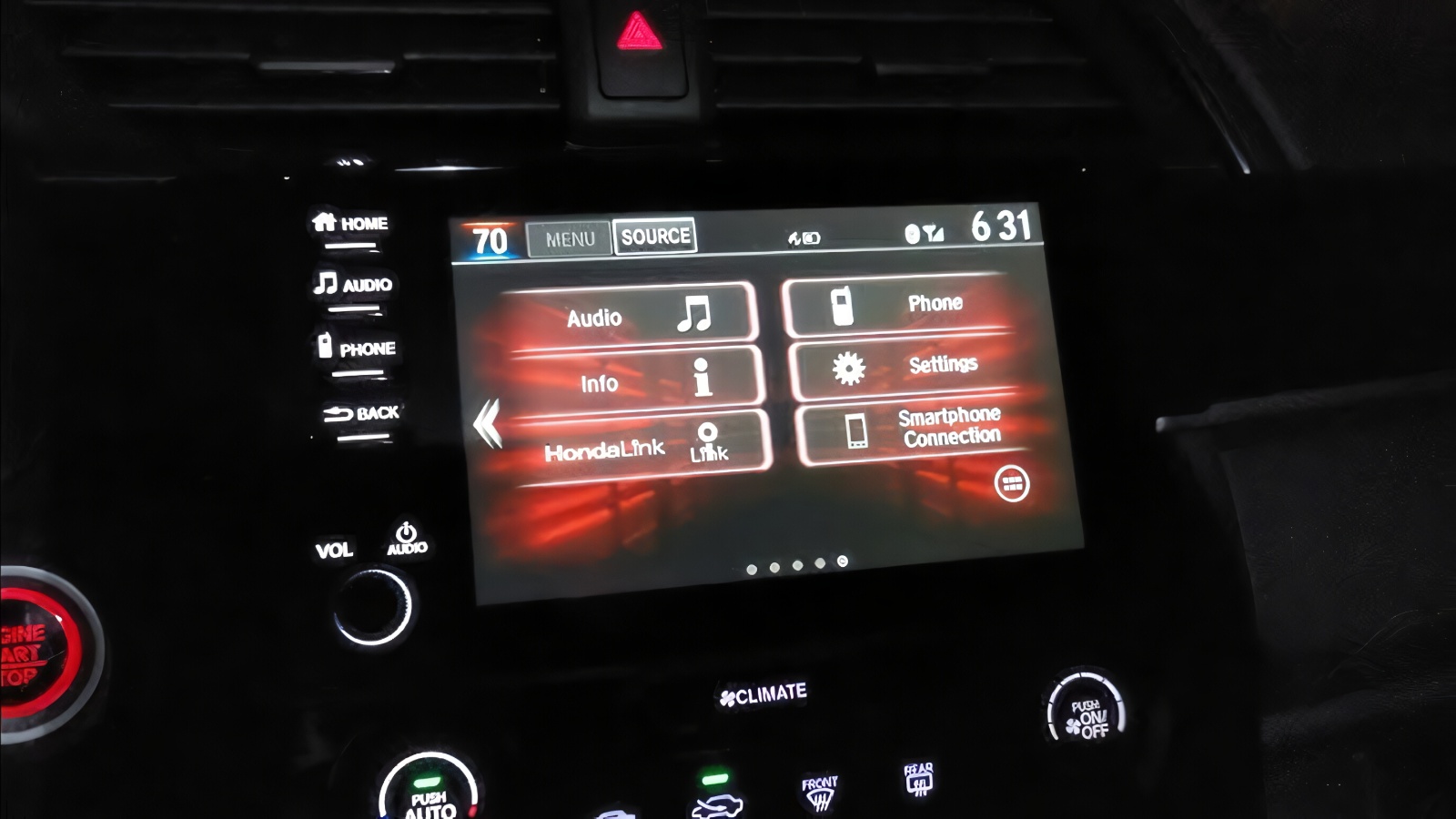
Honda’s data-sharing control can appear in different places across models. One documented route is Home, General Settings, Privacy, Data Sharing with Honda. Other systems place the control under General Settings, System, and Data Sharing Settings. Honda also provides a vehicle-data privacy lookup that asks owners to identify the year, model, trim, or VIN before showing the applicable choices.
That variation is why searching only one menu can fail. If Privacy does not contain the control, inspect System and consult the manual for the vehicle. Honda states that enabling HondaLink on some vehicles requires consent to location sharing. Disabling the setting may therefore interrupt remote status, notifications, assistance, or connected functions rather than simply ending advertising use.
Next, open the HondaLink app and review the connected vehicle, authorized users, account permissions, and privacy choices. Phone permissions such as location, Bluetooth, motion, and notifications are separate from the vehicle’s embedded connection. Denying them can limit app-based collection or operation, but it may not deactivate the telematics unit in the car. Likewise, deleting HondaLink does not necessarily remove the vehicle from the account.
Record the original setting before changing it. After disabling sharing, restart the infotainment system if required, reopen the menu, and confirm that the selection remains saved. Test remote features you expect to lose, and watch for a new consent prompt that could restore sharing.
When selling or returning the vehicle, remove profiles, saved destinations, paired phones, and account access. The practical rule for Honda is to inspect both Privacy and System, then verify the vehicle-specific instructions through Honda’s official data-privacy resource.
4. Toyota’s Data Privacy Portal
Toyota provides access to vehicle data settings through the Data Privacy Portal in the Toyota app. To reach these controls, select the person icon, open Account, choose Data Privacy Portal, and then select the appropriate vehicle. The portal allows owners to view the types of data transmitted by the vehicle, learn how that information is used, and review or update the available data transmission preferences.
Do not confuse this page with marketing preferences. Connected Services can involve vehicle location, driving information, diagnostics, account information, and features such as remote access, maintenance support, navigation, or emergency assistance. Changing a consent may affect services that depend on the same connection. Toyota’s notice advises users to review the consequences before changing a selection.
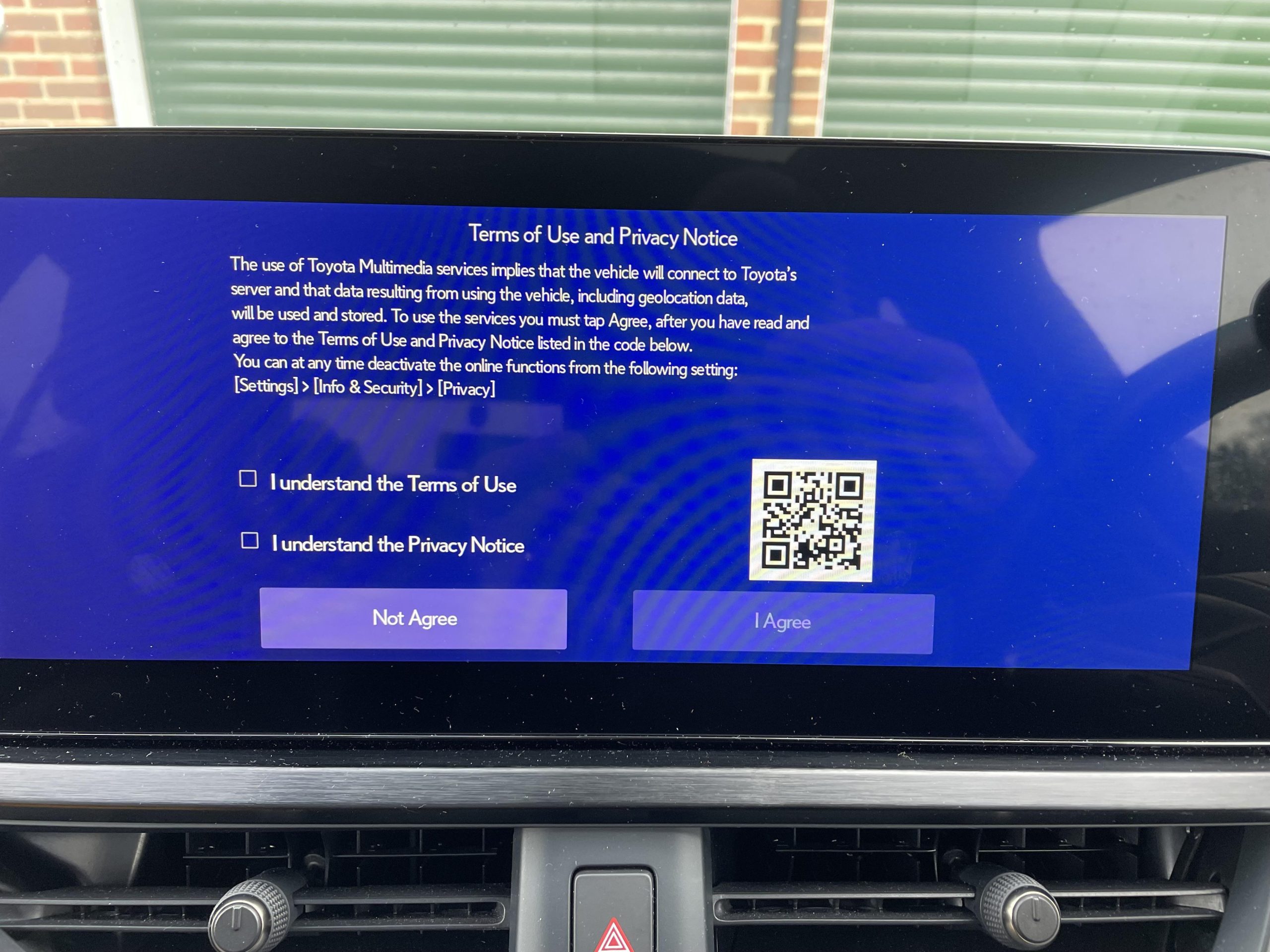
Open every vehicle listed in the account because preferences may be vehicle-specific. Check whether another member is the primary account holder and whether secondary drivers retain access. If the concern is unwanted remote control rather than data collection, use Toyota’s separate process for disconnecting remote vehicle access. A privacy preference and an account-access removal are not necessarily the same action.
After changing a setting, close and reopen the portal to confirm the result. Also inspect the vehicle’s multimedia settings, connected-services subscriptions, paired phones, and app permissions. Turning off future transmission does not automatically erase information already held by Toyota or others. Toyota’s Privacy Hub provides routes for exercising privacy rights, including requests related to stored personal information.
When transferring the car, remove it from the account and clear personal profiles according to the owner’s instructions. The menu to remember is Account, Data Privacy Portal, Vehicle, not the app’s general Settings page.
5. GM’s Family Sharing and Connected Services Menus
GM divides control among the vehicle, the branded mobile app, the online account, and OnStar. One menu that deserves attention is Family Sharing. In the GM app, tap the initials or avatar, open Account, and choose Family Sharing. The account owner can review which people have access to vehicles and remove members who should no longer see or operate features.
This menu is easy to overlook because it is presented as a convenience feature rather than a privacy control. Depending on vehicle capability and plan, shared members may use Vehicle Locate, remote start, lock or unlock commands, vehicle-status information, Wi-Fi settings, or services. GM allows up to eight additional Family Members, making an invitation or forgotten account a source of access.
Review OnStar Guardian separately. Its My Family menu can share live phone location among participating members, and removing someone from vehicle Family Sharing does not automatically remove that person from a Guardian group. Phone location permissions, the connected vehicle, and account-level sharing are three different systems.
Next, inspect the infotainment system for Privacy, Location Services, Connected Services, or similar settings. Exact paths vary by brand, model, and software, so use GM’s manual lookup. Also review active OnStar plans and remove the vehicle from the GM Account when ownership ends.
After every change, reopen Family Sharing and confirm the member and vehicle access are gone. Test that unwanted remote commands no longer work. Do not assume disabling phone location stops the vehicle modem, or that cancelling a plan erases data already collected. Carefully preserve confirmation emails and screenshots.
Also read: 10 Cars That Need Specific Coolant and Not a Universal
6. Kia’s Driving Score and Insurance Menus
Kia’s Driving Score page is not merely a display of driving habits. Kia says that, when the feature is active, driving data is shared with LexisNexis Risk Solutions to generate the score. The score is vehicle-based and may reflect the combined driving of everyone using the enrolled vehicle. A separate Usage-Based Insurance program can share attributes with participating insurers after enrollment.
The important controls sit inside the Driving Score area. Kia instructs users who want to stop sharing with participating insurers to open the Usage-Based Insurance page under Driving Score in the Kia Owner’s Portal or Kia Access app and select Leave Program. However, Kia warns that leaving the insurance program does not stop data from going to LexisNexis for the underlying Driving Score.
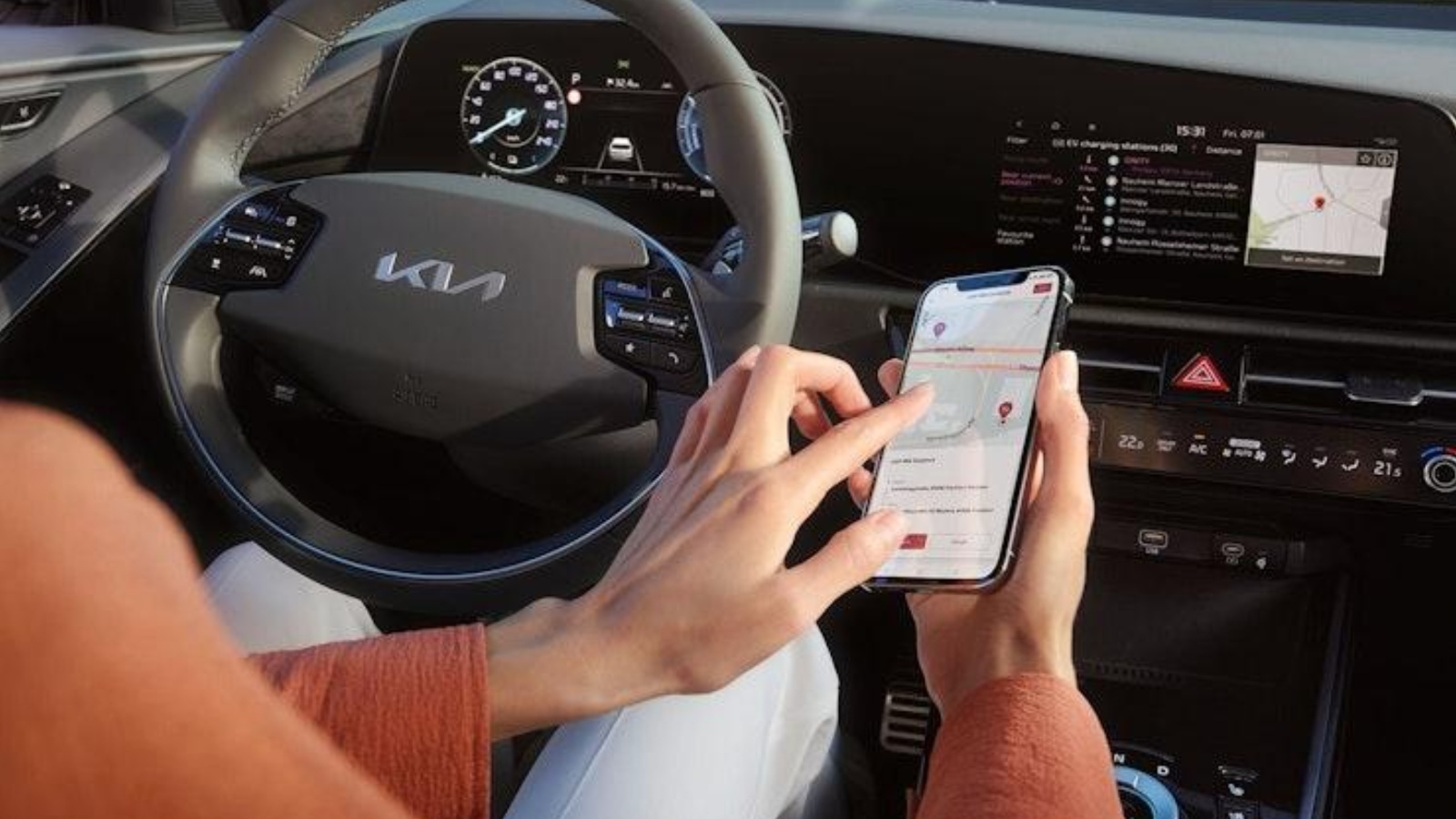
To disable Driving Score and stop that LexisNexis sharing, Kia directs owners to the Kia Connect Call Center. Request confirmation that the feature has been disabled and record the date, representative, case number, and effective date. Ask whether the vehicle will continue transmitting information for navigation, diagnostics, remote commands, maintenance, safety, or connected services.
Next, review the Kia app’s phone permissions. Location, physical activity, Bluetooth, nearby-device access, and background operation may support app functions, but denying them does not necessarily deactivate the vehicle’s embedded modem. Deleting the application may also leave the account and feature enrollment intact.
If LexisNexis already received information, stopping future sharing does not automatically delete its file. Request a consumer disclosure separately when you need to inspect that record. Finally, reopen the Kia portal and preserve screenshots showing the program’s status.
7. Hyundai’s Bluelink Account and Utilities Menu
Hyundai places controls inside the MyHyundai with Bluelink account rather than on the remote screen. Open the app’s menu or Utilities area, then inspect Profile, Settings, My Garage, authorized-driver access, subscription status, and privacy options. The layout may change with an app redesign, but the account pages remain important to verify who and what is connected.
Bluelink can involve vehicle GPS location, mobile location during remote use, driving or vehicle information, account data, and connected features. Hyundai’s U.S. privacy policy says customers may withdraw consent to precise geolocation collection through Bluelink by unenrolling from the Bluelink account. That is different from switching off location permission for the phone app.
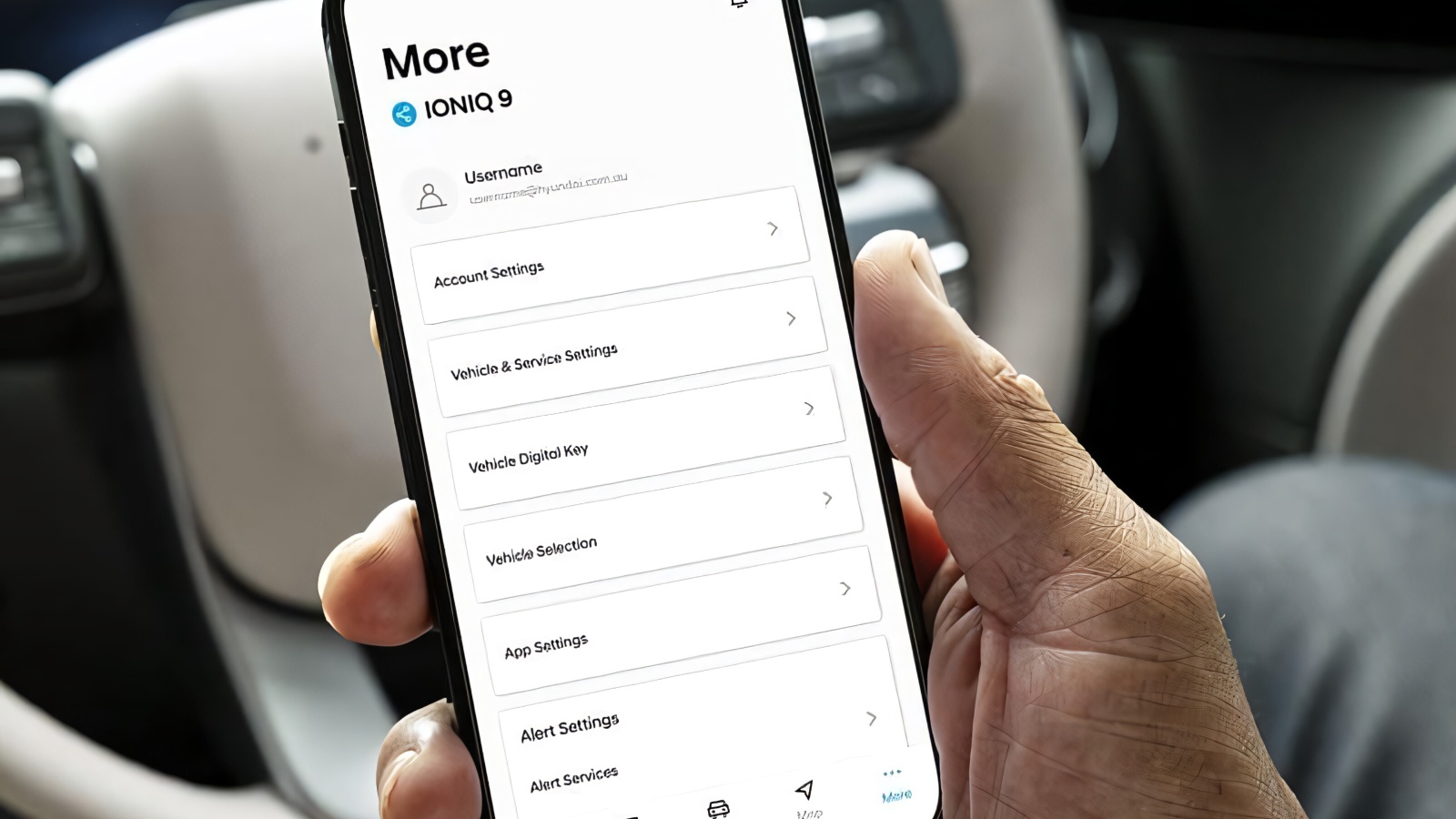
Before unenrolling, note which services stop, including remote commands, vehicle location, notifications, diagnostics, navigation support, or emergency features. If the app does not show a clear deactivation option, contact Hyundai support and ask for written confirmation of the effective date. Then review authorized drivers and remove vehicles that no longer belong in the account.
Phone permissions require checking. Restricting location, precise location, Bluetooth, nearby-device access, or background activity can limit app collection, but it may not shut down the vehicle’s telematics hardware. Deleting MyHyundai also does not prove the subscription or vehicle connection has ended.
After making changes, sign in again and confirm that Bluelink is inactive, unwanted users are gone, and remote functions behave as expected. Hyundai also provides a privacy-request page for managing personal-information requests. When selling the vehicle, follow Hyundai’s instructions for removing personal data, paired devices, destinations, and profiles instead of relying on account unenrollment alone.
8. iPhone’s Privacy and Security Menu
On an iPhone, controls are divided across pages under Settings, Privacy & Security. Start with Location Services, select the automaker or insurance app, and review whether access is set to Never, Ask Next Time, While Using the App, or Always. Precise Location is a switch. Apple confirms that these choices determine how an app can use location in the foreground or background.
Check the Bluetooth and Motion & Fitness settings as well. A telematics app may rely on Bluetooth to connect with a beacon or the vehicle. It may also use motion data to help detect driving activity. You should also review the Tracking setting, but remember that it serves a different purpose.
App Tracking Transparency only controls tracking across other companies’ apps and websites. Turning it off does not remove location or motion permissions, end participation in an insurer’s telematics program, or stop data transmission through the vehicle’s embedded connection.
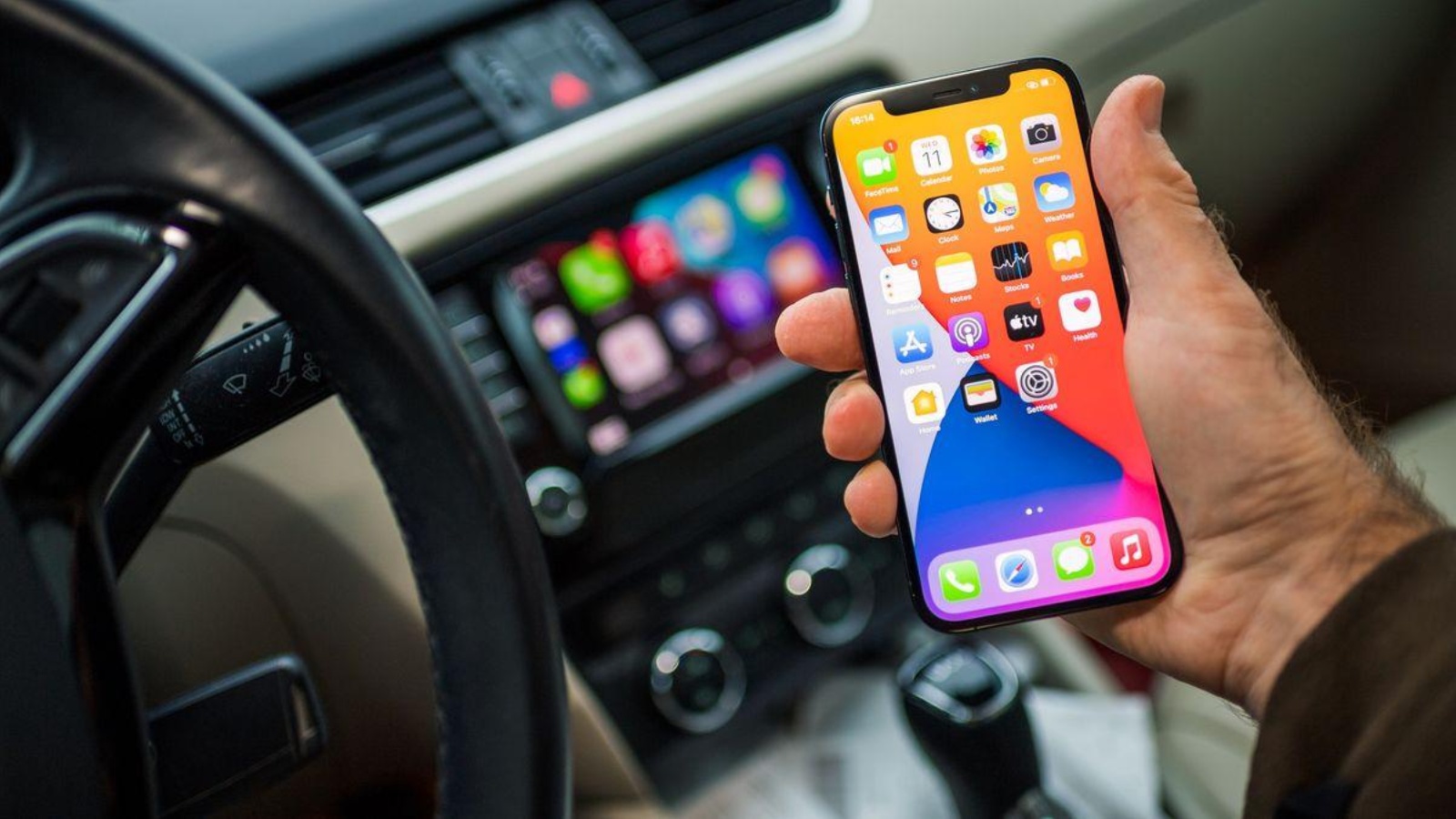
Turn on App Privacy Report under Settings, Privacy & Security to review how apps use granted permissions and which network domains they contact. This can reveal whether a driving app continues accessing location after you thought the setting had changed. Apple says the report includes permission use and network activity, although it does not explain every server connection or data use.
Finally, open the app itself and inspect account, program, privacy, connected-vehicle, and authorized-driver settings. Deleting the app does not necessarily close the account or withdraw insurance enrollment.
After changing permissions, reopen the app and reject any prompt that would restore unwanted access. Check again after an iOS or app update. The hidden lesson is that Location Services, Bluetooth, Motion & Fitness, Tracking, and in-app enrollment control different data flows on that particular phone.
9. Android’s App Permissions and Permission Manager
Android lets users review a driving app two ways. One route is Settings, Apps, select the automaker or insurance app, and tap Permissions. Another is Settings, Security & Privacy, Privacy, and Permission Manager, which groups apps by permission. Wording varies by manufacturer and Android version, so use Settings search if needed.
Check Location and see whether the app is allowed all the time, only while in use, every time, or not at all. If location remains allowed, Android may also offer a precise-location switch. Then inspect Physical Activity, which can cover walking, cycling, driving, and step count. Nearby Devices can connect an app to a vehicle, beacon, or Bluetooth accessory.
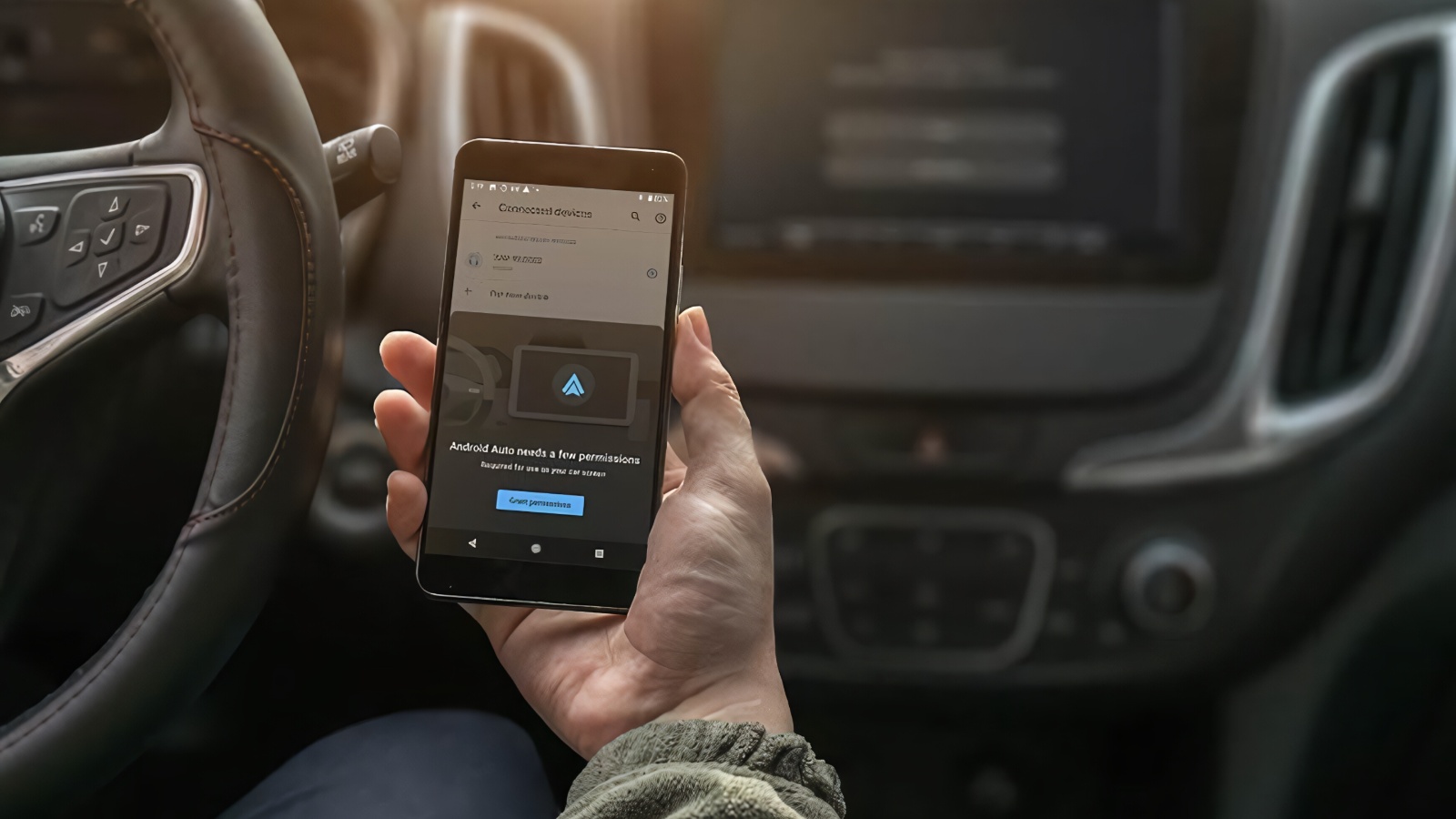
Battery settings matter because unrestricted background operation can help a telematics app detect trips when it is not open. Limiting background use may interrupt collection, but it can also create missing trips under an insurance program. Changing permissions is not the same as formally leaving that program, removing an authorized driver, or deactivating a connected car.
Open the app and review enrollment, privacy, vehicle, device, and account menus separately. Unpair any insurer beacon or vehicle connection that is no longer needed. Deleting the application does not necessarily close the account or erase previously collected information.
After making changes, return to Permission Manager and verify where the app appears. Reopen it carefully because a new permission prompt can restore access. Android also offers automatic permission removal for unused apps on supported devices, but it should not replace formal cancellation while a connected service or insurance agreement remains active in the account.
10. Insurance Telematics Program Menus
Insurance driving programs often hide the decisive control outside the scorecard. Progressive’s Snapshot documentation says its mobile app needs background activity and location services to record trips. State Farm’s Drive Safe & Save materials say Bluetooth, location, mobile data, and accepted permissions are needed to record trips. These settings explain how the phone collects data, but they are not necessarily the cancellation controls.
Open the insurer’s app and inspect Profile, Program Details, Devices, Vehicles, Permissions, Privacy, Discounts, or Contact Support. Determine whether the goal is to stop phone collection, remove one vehicle, remove a driver, return a beacon, or end participation. Each action can require a different step.
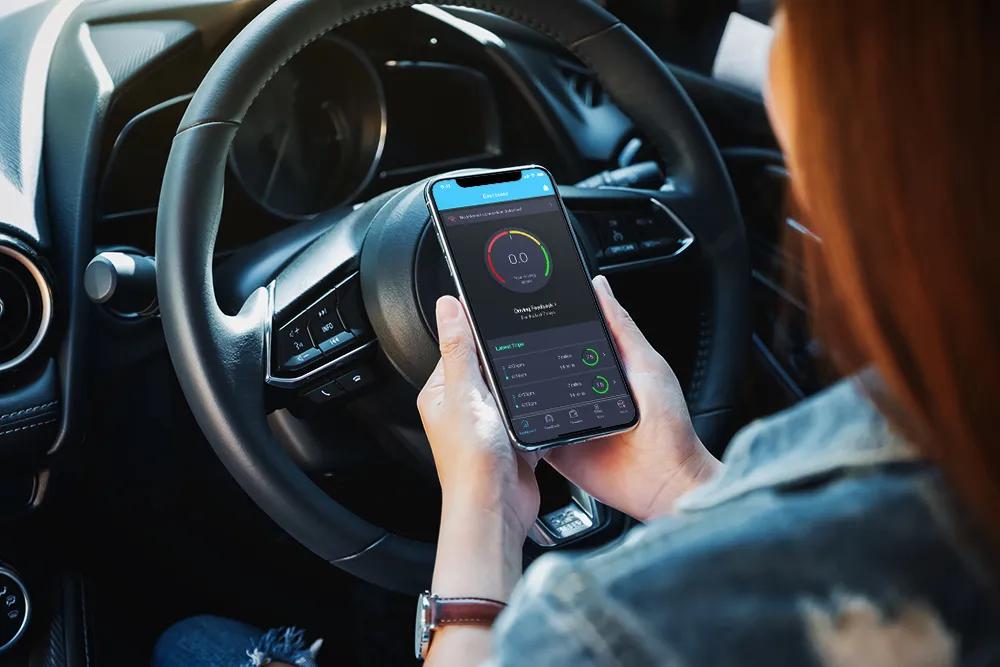
Do not simply turn off location and assume the matter is finished. Missing trips or disabled permissions may affect how the program operates or how a discount is calculated under its current terms. Contact the insurer or agent officially, request cancellation or removal, and obtain written confirmation. Ask whether a plug-in device or Bluetooth beacon must be returned and whether another driver on the policy remains enrolled.
After formal cancellation, remove the app’s location, motion, Bluetooth, nearby-device, and background permissions. Unpair hardware and uninstall the app only after saving any trip history needed to challenge an error. Review the next policy declaration or online account to confirm the telematics program no longer appears.
Stopping future collection does not automatically erase data. Ask the insurer about retention, deletion rights, and any outside company that received information. The real switch may therefore be a support process, not a visible toggle, so preserve the confirmation for your records.
Also read: 10 Cars Recording Audio Before the Wake Word